
What to do after buying a domain and hosting from Hosting Home
Welcome to HostingHome.in! If you’ve recently subscribed for a new domain name and site hosting package with us — congratulations! You are just a few steps away from having your site live.
Whether you’re creating a website for business, personal or e-commerce purposes, this guide has you covered. And don’t worry if you’re not tech- Expert— everything on here is simple and easy to follow for beginners.
Here’s what to do next:
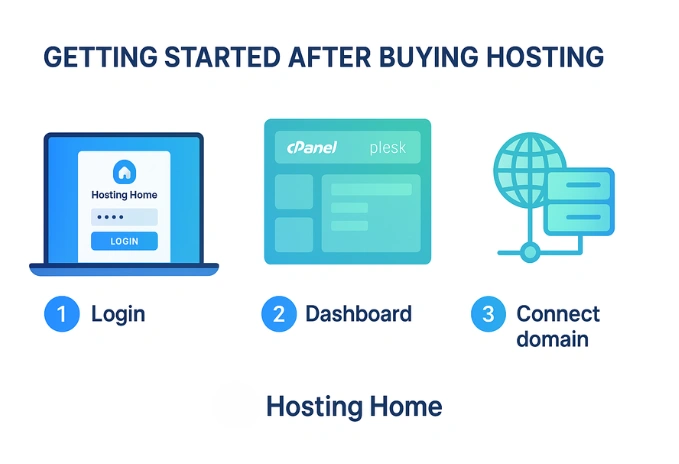
1. Log in to your Hosting Home Account
After buying, you will get a confirmation email with your login details.
- Go to hostinghome.in
- Click on Client Login
- Enter your email and password
Once you log into your account, you can view your dashboard, wherein you can access your domain and hosting, support, and billing details.
2. Log in to your cPanel / Plesk Control Panel
You will receive either Linux cPanel or Windows Plesk based on your hosting package.
- From your Hosting Home dashboard, click Services
- Choose your hosting package
- Click “Login to cPanel” or “Login to Plesk”
This panel is where you’ll control your website, email addresses, databases, and more.
3. Point Your Domain to Hosting
If Hosting Home registered the domain on your behalf and you purchased hosting with us, we’ll automatically link the two. However, if you purchased the domain from another provider, you’ll need to point it to our nameservers:
- ns1.hostinghome.in
- ns2.hostinghome.in
Change these records in the DNS settings for your domain registrar.
4. Create Your Website (WordPress or Custom)
If you’re new to hosting websites, WordPress is the Quickest way to get started.
To install WordPress:
- Visit your cPanel dashboard
- Scroll down to Softaculous App Installer
- Click on WordPress
- Click Install Now
- Enter your website name, username, and password
- Click Install
Your WordPress site will go live in seconds!
You can access your WordPress dashboard at:
yourdomain.com/wp-admin
5. Set Up Email Accounts
Create a professional email like you@yourdomain.com
- Log in to cPanel or Plesk
- Manage to Email Accounts
- Click Create
- Set your password and username

6. Secure Your Site with Our Free SSL
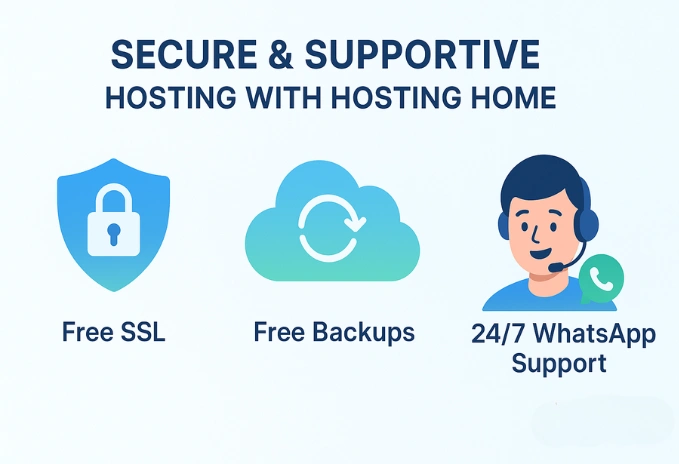
We include free SSL certificates on all packages.
- In cPanel, access SSL/TLS Status
- Click Run AutoSSL
This will secure your site is Obtained via https, Advanced security and trust.
7. Need Assistance? We’re Just a Message Away
At Hosting Home, we include free dedicated WhatsApp support and 24/7 support.
If you need help with setup, need to query something, or need Support, get in touch with us via WhatsApp, chat, or ticket support.
8. Building Your Website
After your domain and hosting are linked and WordPress is installed, You’re ready to go online:
- Choose a theme or design
- Make pages such as Home, About, Contact, etc.
- Add content and images in
- Publish your site live
Hosting Home Features
- Backups up — we do free weekly backups
- Use your control panel to handle files, emails, and security
- Regularly update your CMS (such as WordPress) and plugins
- Free migration or site transfer if required
Ready to Go Live?
HostingHome.in makes publishing your website quick, simple, and completely supported. We offer Free SSL DDoS Protection and Free Managed Support.
Having Trouble? Our friendly support staff is always available!
Buy a Domain and Hosting from Hosting Home Get Best Discount and Free Services.