
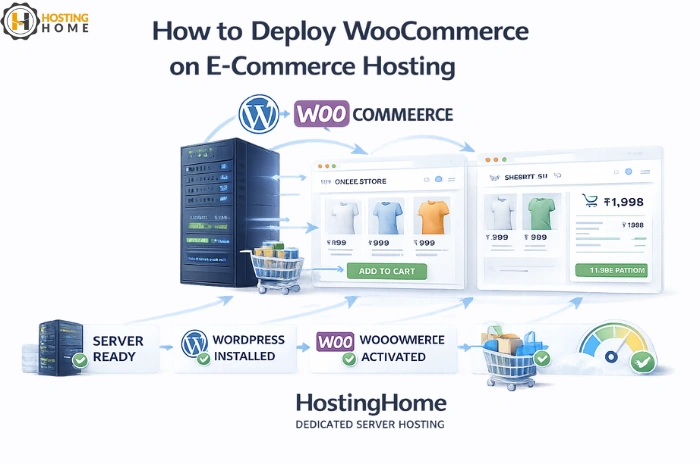
In this blog you are going to learn How to Deploy WooCommerce on E-Commerce Hosting. launching an online store might be Exciting, most people get stuck with its deployment. With WooCommerce the process becomes easier, especially if combined with the right ecommerce web hosting. This blog focuses only on the deployment journey, the performance checklist, smart Setup tips, plugin stack, and real-world server needs.
1. Server Readiness Checklist (Before You Deploy)
Even the best hosting server for e-commerce needs a proper setup plan. Make sure you check these key points inside your hosting panel before installing WooCommerce:
- PHP Version 8.0 or above
- MySQL 5.7+ or MariaDB 10.3+
- Minimum 2 GB memory limit for PHP
- HTTPS enabled using SSL
- No strict file permission limits
An ecommerce web hosting setup that meets this becomes a strong base. A large number of store owners compare providers to find the best ecommerce hosting platform. Most of them, forget to check their server compatibility. Always check this first.
2. Deploy WordPress the Right Way
Since WooCommerce works on WordPress, start by deploying a clean WordPress on your hosting plan for an ecommerce website.
Most ecommerce-friendly hosts provide options for quick installations. Look for hosting which is listed among the best ecommerce hosting sites for WordPress compatibility and fast deployment tools.
Steps inside your hosting dashboard:
- Open your control panel – cPanel or Plesk:
- Locate “WordPress Installer” or “Softaculous”
- Choose your domain and click Install
- Keep auto-updates on
- set admin username strong and unique
This makes sure your site runs smoothly on your e-commerce website hosting server.
3. WooCommerce Installation + Store Setup
After WordPress is live:
- Go to Dashboard → Plugins → Add New
- Install WooCommerce
- Activate it and finish the store wizard
During setup, select:
- Store country: India
- Currency: INR
- Enable tax, if applicable
- Add shipping zones later
A good web host, that qualifies as the best hosting for ecommerce website India, would not slow down on plugin installation or database creation.
4. Best Plugin Stack for High-Converting WooCommerce Store
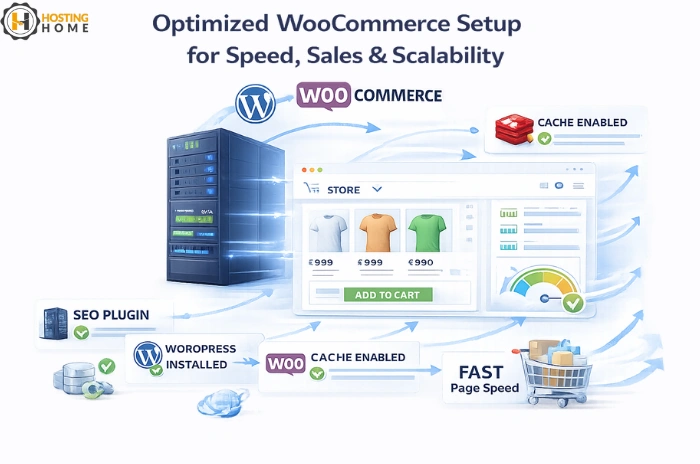
Not only about installing WooCommerce, you also need to have the right plugins for sales, tracking, speed, and automation. Install only the essentials, it helps your server perform like one of the best servers for an ecommerce website.
| Purpose | Plugin Suggestion |
|---|---|
| SEO | Rank Math or Yoast SEO |
| Cache | LiteSpeed Cache or WP Super Cache |
| Image Compression | Smush or ShortPixel |
| Security | Wordfence or iThemes |
| Page Speed | Perfmatters or Asset Cleanup |
| Tracking | GTM Kit or PixelYourSite |
| WP Mail SMTP | |
| Backup | UpdraftPlus (optional if host gives backups) |
This stack keeps your store light and server-friendly, allowing your e-commerce web hosting to deliver a better speed and uptime.
5. Ideal Server Specs for Medium & Large WooCommerce Stores
Many people look for the best hosting server for ecommerce, or the best server configuration for ecommerce website as WooCommerce stores may get resource-heavy.
Small Store-Up to 2,000 products
- Shared hosting works fine if SSD/NVMe are included.
- 2 GB of PHP memory limit
- 2 CPU cores
Medium Store (2,000 – 10,000 products)
- VPS or cloud recommended
- 4 GB RAM
- 4 CPU Cores
- Object cache: enabled (Redis/Memcached)
Large Store (10,000+ products)
- Dedicated server or high cloud server
- 8–16 GB RAM
- 6–12 CPU cores
- Database indexing + query caching
Hosting which meets these can easily fall into the category of best ecommerce hosting sites for WooCommerce performance.
6. Deployment Tips Most Store Owners Miss
Here are some deployment tips to help your store run as if it’s on the best ecommerce hosting platform:
- Disable unused WooCommerce features: Marketplace, Jetpack suggestions, etc.
- Use lazy loading for images
- Clean product revisions frequently
- Use a CDN if the audience is global
- Limiting external scripts
- Optimize database tables monthly
- Use cron jobs smartly, not real time unless needed
The following steps will help your server perform best server for e-commerce setup, even at traffic spikes.
7. Point Your Domain & Go Live
Once all is set:
- Open DNS panel inside your domain provider or host.
- Adding Hosting A record or NameServers
- Wait for DNS to propagate – usually 1–10 minutes
- Open your domain → it should load your WooCommerce store on HTTPS
Now, your WooCommerce store is fully set up on your ecommerce website hosting plan.
Why Hosting Home is a smart choice for WooCommerce Ecommerce Hosting
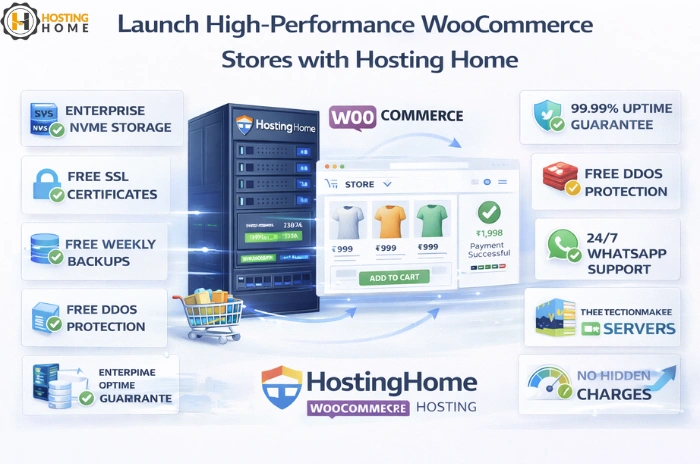
Hosting Home e-commerce hosting highlights:
- Enterprise-grade NVMe storage for quick store browsing
- Free SSL certificates for secure checkout pages
- Free weekly backups to secure orders and customer data.
- Free DDoS protection to keep your store online
- 99.99% uptime guarantee for smooth sales all year.
- Free migration support for easy migration of website
- 24/7 Dedicated WhatsApp support for quick help
- Plans built for ecommerce stores needing stable performance
If you are comparing best ecommerce hosting sites, or searching for the best hosting company for ecommerce website, Hosting Home provides plans with real store-ready servers.
Looking for ecommerce hosting that actually performs?
Hosting Home provides fast, secure, scalable hosting for WooCommerce stores, starting at very affordable pricing, with premium free features.
If you want to buy the best hosting for ecommerce website India, smart server support, and stress-free deployment, choose Hosting Home today.
Visit HostingHome.in to explore WooCommerce-ready hosting plans now!